




Nearby sharing makes it easy to exchange contact information, photos and accident reports, but security flaws could expose your phone or computer to wireless attacks
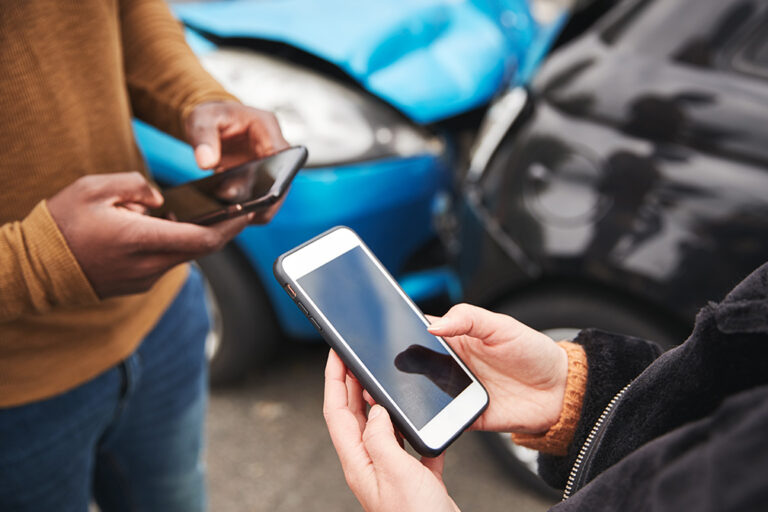
AirDrop and Quick Share can be especially useful when you spend your workday on the road. Maybe you need to send contact information to another driver, share photos of damaged cargo, or exchange pictures and reports after an accident. Instead of typing everything out or emailing large files, you can tap a name, send the file and move on.
However, new security research shows those convenient nearby-sharing tools may also create a wireless opening around your phone or computer. Researchers at the CISPA Helmholtz Center for Information Security examined Apple AirDrop and Android Quick Share.
They found six vulnerabilities across Apple, Samsung and Google implementations. The flaws include AirDrop crash bugs, Samsung Quick Share protocol issues and a Google Quick Share for Windows bug that could potentially lead to remote code execution.
That risk matters when you regularly stop at truck stops, rest areas, loading facilities, hotels and other places filled with unfamiliar devices. Your phone may be sitting in the cab of the truck or in your pocket while it listens for nearby sharing requests. A bad actor close enough to your device could try to take advantage of that wireless connection before you realize anything is happening.
So, the next time you’re about to AirDrop a photo to another driver at a rest area or use Quick Share to move an accident report to your laptop, take a moment to check who can see your device.
💰Free live CyberGuy class: Protect Your Money From Today’s Biggest Threats
Join us Saturday, August 29, at 10 AM ET for a free CyberGuy LIVE class covering five simple steps to help defend yourself against AI scams, fraud, identity theft and financial hacks. Kurt “CyberGuy” Knutsson will explain how to set up bank alerts, strengthen your account logins, protect your phone number, freeze your credit, and help secure your retirement savings against unauthorized transfers. No technical experience is needed. You’ll also receive our financial protection checklist, and every registrant will get a link to the class recording afterward.
Reserve your free spot today at CyberGuyLive.com.
AirDrop Quick Share security flaws explained
The researchers call this a proximity problem. AirDrop and Quick Share are built to find nearby devices without the usual setup of pairing first. That convenience is the whole point. It also means the sharing software has to listen before it fully trusts the other device.
According to the research, the affected protocols are used by more than 5 billion devices. Apple reports more than 2.2 billion active devices running the sharing service tied to AirDrop. Google reports more than 3 billion Android devices with Quick Share available system-wide or used as a default sharing tool on many phones.
The study found three AirDrop issues that could be triggered before authentication. It also found two Samsung Quick Share protocol flaws. In addition, researchers found one Google Quick Share for Windows use-after-free bug. Apple, Samsung and Google acknowledged the reports, according to the researchers.
Why AirDrop and Quick Share can expose your phone
Most phone attacks we talk about involve bad links, fake login pages or shady apps. This research points to a different kind of risk because it starts with physical proximity. A nearby attacker may not need your password. They may not need you to open a website either. In some cases, the target device only needs to be discoverable or in a sharing mode that listens for nearby devices.
That doesn’t mean someone can grab every photo on your phone by standing next to you. The known flaws are narrower than that. Still, the research shows that file-sharing features sit closer to sensitive parts of the system than many of us realize. AirDrop interacts with Apple’s sharing service, which supports features beyond file transfers. Quick Share also moves through low-level networking and device-to-device connection steps. That’s why bugs in this area deserve your attention.

How nearby hackers could abuse AirDrop and Quick Share
The most immediate risk is disruption. Researchers found AirDrop bugs that could crash Apple’s sharing service. That service supports AirDrop and other continuity features.
On Samsung Quick Share, researchers found protocol weaknesses that could let an attacker manipulate connection behavior before full authentication. Another issue could allow certain control messages to be injected during an active transfer.
The Google Quick Share for Windows bug is more serious on paper. Researchers described it as a heap use-after-free issue and said Google awarded a bug bounty for it. The paper says this type of bug could potentially be developed into a full remote code-execution exploit.
Google told CyberGuy it has addressed the Windows issue. “We’ve patched the flaw identified for Quick Share for Windows. As a best security practice, users should always ensure they apply the latest security updates available for their device,” a Google spokesperson said.
For most phone owners, the daily takeaway is clear: Nearby sharing is useful, but you should avoid leaving your device open to everyone when you do not need it.
Who faces the biggest AirDrop and Quick Share risk?
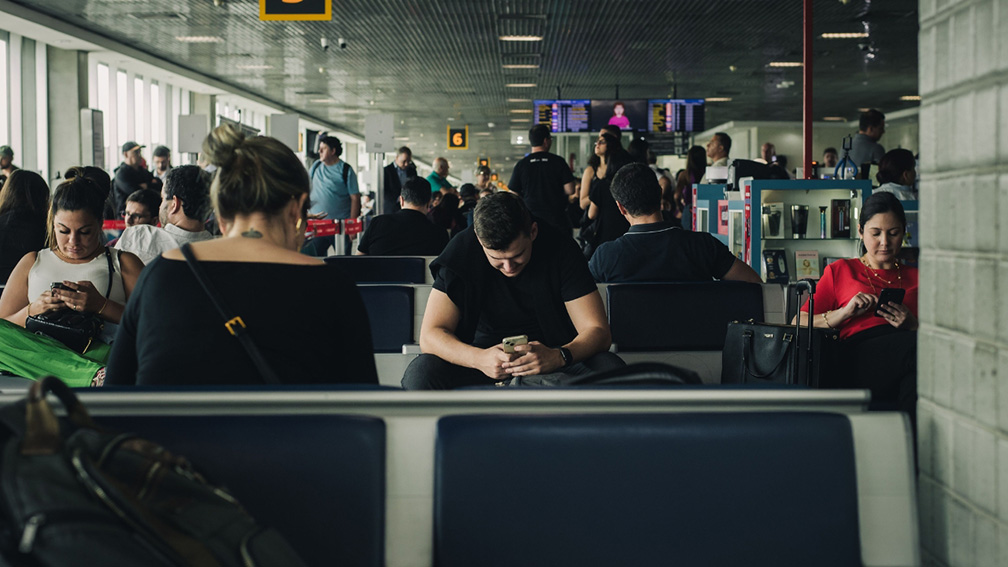
You should be extra careful with AirDrop or Quick Share when you’re around a lot of strangers. That includes airports, trains, hotels and large events. These are places where a nearby attacker could sit close enough to reach many devices at once.
The risk goes up when your phone is set to receive from everyone. On iPhone, Apple says the “Everyone for 10 Minutes” setting reverts after 10 minutes if you’re signed in to your Apple Account. If you’re not signed in, it reverts to Receiving Off. That time limit helps. Even so, you should treat “Everyone” as a temporary setting. Turn it on only when you need it.

Ways to stay safe from AirDrop and Quick Share risks
The good news is that a few quick settings checks can make your phone much harder for nearby strangers to reach. You can also review these iPhone and Android security settings for more ways to lock down your device.
1) Update your phone and computer.
Start with regular software updates. The researchers responsibly disclosed the findings, and fixes are underway across vendors. Install iOS, iPadOS, macOS, Android, Samsung updates, Google Play system updates and Quick Share for Windows updates as soon as they become available. Also check the apps or utilities tied to sharing on your computer. Quick Share for Windows was part of this research, so remember the PC side if you use Android-to-Windows transfers.
2) Lock down AirDrop on iPhone.
On iPhone, keep AirDrop limited unless you are actively using it. The safest everyday choice is Receiving Off or Contacts Only.
- To check AirDrop from Control Center on most newer iPhones, wake up your iPhone and unlock it. Look at the top-right corner of the screen where you see the battery icon. Place your finger near that corner and swipe down toward the middle of the screen. If Notification Center opens instead, try again from farther to the right.
- Next, look for the box in the top-left area with the Wi-Fi, Bluetooth and airplane icons. Touch and hold that box until it expands.
- Then tap AirDrop. Choose Receiving Off if you do not want anyone nearby to send you files. Choose Contacts Only if you only want people saved in your contacts to reach you.
- You can also use the Settings app. Tap Settings, then General, then AirDrop. From there, choose Receiving Off, Contacts Only or Everyone for 10 Minutes.
- Use Everyone for 10 Minutes only when you are expecting a file from someone nearby. After that, go back to AirDrop and switch it to Contacts Only or Receiving Off.
3) Limit Quick Share on Samsung.
On a Samsung phone, Quick Share controls who can see your device and send you files nearby. The safest everyday choice is No one or Contacts only.
- To check it from the Quick panel, wake up your phone and unlock it. Place two fingers at the very top-right area of the screen and swipe down. This opens the full Quick panel. If that feels tricky, swipe down once from the top of the screen, then swipe down again to see more buttons.
- Look for the Quick Share button. If you do not see it, swipe left across the Quick panel to see more buttons. Tap Quick Share.
- A menu should appear that says Who can share with you. Choose No one if you do not want nearby people to find your phone. Choose Contacts only if you only want saved contacts to share with you. Avoid Everyone or Anyone nearby unless you are expecting a file from someone you trust.
- You can also use the Settings app. Tap Settings, then tap the search bar at the top. Type Quick Share. Tap Quick Share, then tap Who can share with you. Choose No one or Contacts only.
- Use Everyone or Anyone nearby only when you are actively receiving a file. After that, go back into Quick Share and switch it to No one or Contacts only.
4) Decline random file requests.
A file request from a stranger should be a red flag. Even if the file name looks harmless, decline it. Attackers often rely on curiosity. They may use a funny photo name or something that looks like it came from a nearby event. If you did not ask for the file, decline the request.
5) Turn off nearby sharing in crowded places.
If you’re traveling or sitting in a packed public place, turn receiving off. This is especially helpful at airports, train stations and large events. You can still turn AirDrop or Quick Share back on when you actually need it. That small habit gives you more control over when your phone is visible.
6) Be careful with personal files.
If you use AirDrop or Quick Share to send personal files, slow down before you tap “Send.” Check the recipient’s name carefully. When possible, confirm the device in person before sharing. Be extra careful with photos, tax documents, travel confirmations, medical forms, school paperwork or anything that includes your address, phone number or financial details. Avoid sending private files to devices with generic names like “iPhone,” “Galaxy” or “Laptop.” For sensitive documents, use a trusted cloud storage or file-sharing service where you can confirm the recipient, manage access and add password protection when available.
7) Keep Bluetooth and Wi-Fi under control.
Nearby sharing often relies on Bluetooth and Wi-Fi to discover and transfer between devices. You do not need to turn both off all day. However, it is smart to disable sharing features when you are done. Also, skip random public Wi-Fi networks just because they look familiar. Your phone can do a lot in the background. Give it fewer chances to talk to strangers.
8) Use strong security software.
Strong antivirus software such as Norton Antivirus Plus (CyberGuy Deal: 58% off) can help detect malicious files if you accidentally accept something you should not have. This is especially important on computers, since Quick Share for Windows was part of the research. Keep your security software updated and scan any file that looks suspicious before opening it. Get Kurt’s picks for the best 2026 antivirus protection winners for your Windows, Mac, Android & iOS devices at Cyberguy.com/LockUpYourTech.
Kurt’s key takeaways
AirDrop and Quick Share can make life on the road easier, especially when you need to quickly exchange contact information, cargo photos, accident documentation or other files. I use nearby sharing too, and I understand why drivers would not want to give it up. Still, this research is a reminder that convenience can create an opening when your phone is discoverable around strangers.
Truck stops, rest areas, loading docks and hotels can put you within wireless range of dozens of unfamiliar devices. A bad actor may only need to be nearby to attempt an attack. Keep your phone and computer updated, limit sharing to trusted contacts and turn receiving off when you are not actively using it. Most importantly, confirm the receiving device before sending a file and never accept a transfer you were not expecting.
Should phones make nearby sharing harder to leave open in public places? Let us know your thoughts by writing us at Cyberguy.com/Contact.
Sign up for Kurt’s FREE CyberGuy Report
-
- Get Kurt’s best tech tips, urgent security alerts and exclusive deals delivered straight to your inbox.
- For simple, real-world ways to spot scams early and stay protected, subscribe to Kurt’s free CyberGuy Report Newsletter by heading to Cyberguy.com/Newsletter, trusted by millions who watch CyberGuy on TV daily.
- Plus, you’ll get instant access to Kurt’s Ultimate Scam Survival Guide free when you join.
Copyright 2026 CyberGuy.com. All rights reserved.
Kurt the CyberGuy is an award-winning tech journalist who helps people make smart tech decisions from his contributions to Fox News & FOX Business, beginning mornings on “FOX & Friends.” Stay safe & in the know — at no cost. Subscribe to Kurt’s The CyberGuy Report for free security alerts & tech tips.
Join Kurt on his podcast, The CyberGuy Report, as he explores the most fascinating breakthroughs in tech and the people behind them. Look for new episodes every Wednesday at CyberguyPodcast.com
Ask Kurt a question or let us know what stories you’d like us to cover.
Follow Kurt on his social channels:
Facebook • YouTube • Instagram • TikTok


Kurt Knutsson — best known as “Kurt the CyberGuy” — has a deep love of technology that makes life better. Because of this, along with a passion for helping others, he created the largest syndicated tech lifestyle franchise on television. As a trusted source, Kurt’s unique insider access to major tech launches and industry visionaries has helped earn him two Emmy Awards and a Golden Mic.
Kurt lives between his home in California and New York City, where he is also the chief tech contributor on Fox News & Fox Business networks beginning his mornings on Fox & Friends.
Kurt’s a curious guy. Like many entrepreneurs in life, he wears several hats like running a private investment fund, giving inspirational talks, mentoring start-ups and traveling the world chasing down the next breakthrough.