





Fake virus alerts can scare iPhone and Android users into tapping, calling or downloading trouble. Here’s how to stop the panic and protect your phone
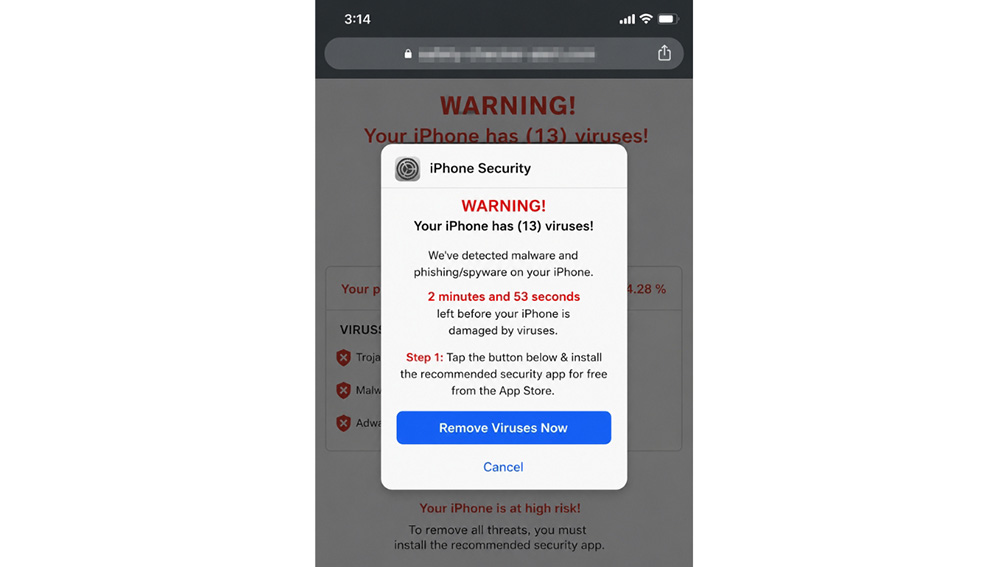
You are checking the weather, reading the news or trying to close a random webpage when a pop-up suddenly appears on your phone: Warning: Your phone has viruses. Tap here to remove them now.
That kind of alert can make anyone freeze. It looks urgent. It may vibrate your phone. It may show a countdown clock. It may even claim to come from Apple, Google, Samsung, your carrier or a trusted security company.
Take a breath before you tap anything. In many cases, that scary warning comes from a fake pop-up, not a real scan of your phone. Tech support scams often begin with bogus alerts that look like they come from well-known companies and push people to call a number for help. Real security warnings should not ask you to call a phone number from a pop-up.
The good news? A pop-up by itself usually means you landed on a scammy webpage. Still, what you do next matters because one careless tap can turn a fake warning into a real problem.
NEW! Join our upcoming CyberGuy LIVE class: Get Better Health Care With AI on Saturday, September 26 at 11 a.m. ET / 8 a.m. PT
In this free live online class, Kurt “CyberGuy” Knutsson will show you five practical ways AI can help you take a more active role in your healthcare. You’ll learn how to organize your health history, remember important appointment details, understand complicated medical information, research prescriptions and prepare questions for your next doctor’s visit. No technical experience is needed.
Register for free now at CyberGuyLive.com.
Why fake phone virus warnings look real
Scammers know panic works. So they use big red warnings, fake system scans and official-looking logos to make a browser page feel like a real security alert.
On an iPhone, these fake warnings often appear in Safari or another browser. On a Samsung phone, they often appear in Chrome, a website notification or a questionable app. Google says Chrome blocks pop-ups by default, but users can still run into unwanted pop-ups, redirects and site notifications.
The scam usually tries to push you into one of these actions:
- Call a fake support number;
- Download a fake security app;
- Pay for useless cleanup software;
- Give someone remote access;
- Enter your Apple ID or Google account password; or
- Install an app from outside the official app store.
That last one creates a bigger risk on Android, because Android allows more flexibility around app installation. Google Play Protect checks apps for harmful behavior and can warn you, deactivate risky apps or remove them from your device.
How to spot a fake phone virus warning
A fake phone virus warning usually appears inside a browser page. It may use urgent language, countdown clocks or fake scan results. It may claim your photos, messages or bank details have already been exposed.
It may also push you to call a number right away. A real security warning usually comes from your phone’s operating system, your app store or a security app you installed yourself. It should not pressure you to call a random number from a pop-up.
Here’s the simple rule: If a webpage claims it scanned your entire phone and found viruses, treat it as suspicious.
Do this first if your phone says it has a virus
Do NOT tap the warning. Do NOT call the number. Do NOT download the app it recommends.
Instead, close the browser tab or app. If the pop-up locks the screen, close the browser from your app switcher and reopen it carefully. If the same page returns, clear your browser data.
Also, avoid pressing buttons that say OK, Remove virus, Scan now or Call support. Those buttons may lead you deeper into the scam.
A random website cannot scan your whole iPhone or Samsung Galaxy S24 Ultra just because you visited a page. Treat that kind of warning as suspicious.
What iPhone users should do after a virus warning
If the warning appeared while you were browsing, start with Safari or the browser you used.
1) Close the suspicious page.
On iPhone, swipe up from the bottom of the screen and pause in the middle. Find Safari or the browser you were using; then swipe up on the browser preview to close it. Reopen the browser. If the same page comes back, open a new tab and close the suspicious one.
2) Clear Safari history and website data.
On iPhone, go to Settings > Apps > Safari > Clear History and Website Data > Tap All history> Clear History. Apple says this removes Safari history and cookies from your device.
If you use Chrome, Firefox or another browser on your iPhone, clear browsing data inside that app too.
3) Check for strange calendar alerts.
Some scam pages trick people into subscribing to spam calendars. That can make fake virus alerts appear later as calendar events.
Open the Calendar app > tap Calendars > tap the info button next to any calendar you do not recognize > tap Delete Calendar or Unsubscribe. If you cannot remove a calendar, hide it instead.
4) Update your iPhone.
Go to Settings > General > Software Update and install any available update.
You can also go to Settings > General > Software Update > and turn on automatic updates so your phone gets important fixes faster.
5) Delete suspicious iPhone apps.
Look for apps you do not remember installing. Pay close attention to cleaners, scanners, VPNs or security apps that appeared after the alert.
Touch and hold the suspicious app; then tap Remove App > Delete App > Delete.

What Samsung phone users should do after a virus warning
If you’re using a Samsung phone, the next few steps can help you get rid of the alert and make sure it does not keep coming back. Settings may vary depending on your Android phone’s manufacturer.
1) Close the suspicious Chrome tab.
If the alert appeared in Chrome, close that tab first.
Open Chrome > tap the square tab icon > tap X on the suspicious tab.
If Chrome keeps reopening the same page, swipe up from the bottom of the screen and hold to open Recent apps. Then swipe Chrome away to close it.
2) Clear Chrome browsing data on Samsung Galaxy.
Open Chrome > tap the three dots > Delete browsing data. Choose the time range, then tap Delete data. Google says this can delete browsing history, including open tabs.
If you want a deeper cleanup, go to Chrome > three dots > Settings > Privacy and security > Delete browsing data. Then choose what you want to remove > Delete Data.
3) Block suspicious website notifications on Samsung Galaxy.
Open Chrome > three dots > Settings > Site settings > Notifications. Look for any site you do not recognize and block it.
If the alerts keep coming through Chrome, go to Settings > Notifications > App notifications > Chrome on your Samsung phone. You can turn off Chrome notifications there, but keep in mind that this may also stop legitimate Chrome alerts.
4) Turn on Google Play Protect.
Open Google Play Store > profile icon > Play Protect > Settings gear. Turn on Scan apps with Play Protect.
Google says Play Protect checks apps from Google Play before download; it also checks your device for potentially harmful apps from other sources.
5) Delete suspicious Samsung Galaxy apps.
Go to Settings > Apps. Review recently installed apps. Look closely at anything with words like cleaner, booster, battery saver, scanner or security update.
Tap the suspicious app, then tap Uninstall > OK. Verizon’s Galaxy S24 support page lists the same basic uninstall path through Settings > Apps > select app > Uninstall > OK.
You can also swipe up to open your Apps screen, press and hold the app icon, then tap Uninstall.
6) Update your Samsung phone.
Go to Settings > Software update > Download and install.
When a phone virus warning may be more serious
A fake pop-up by itself usually causes more fear than damage. However, take the situation more seriously if your phone starts acting strangely after you tapped something or installed an app.
Watch for warning signs like these:
- Your phone gets hot for no clear reason.
- Battery drains much faster than usual.
- Unknown apps appear.
- Your browser keeps redirecting you.
- You see charges you do not recognize.
- Friends receive strange messages from your account.
- Your Apple ID, Google account or Samsung account shows unfamiliar sign-ins.
If that happens, remove suspicious apps, update your phone, change important passwords and check your accounts from a trusted device.
Ways to stay safe from phone virus scams
A fake phone virus warning can feel convincing because it shows up right when you are busy. The safest response is to slow down, close the alert and check your phone through settings instead of tapping whatever the pop-up tells you to do.
1) Download apps only from trusted stores.
Use Apple’s App Store on iPhone and Google Play or Samsung’s Galaxy Store on Samsung phones. Be careful with links that ask you to install apps directly from a website, especially after a scary pop-up tells you your phone has a virus.
2) Review app permissions.
Some apps ask for more access than they need. A flashlight app should not need your contacts. A wallpaper app should not need control over accessibility settings. If an app asks for too much, deny the permission or remove the app.
On iPhone, go to Settings > Privacy & Security to review categories like Location Services, Contacts, Camera and Microphone. You can also go to Settings > Apps > choose an app to review what that app can access.
On Samsung phones, go to Settings > Apps > choose an app > Permissions to review what that app can access.
3) Avoid calling numbers in pop-ups.
If you think your Apple, Google, Samsung, bank or carrier account has a problem, go directly to the official app or website. Do not trust a phone number inside a scare alert.
4) Use strong antivirus protection.
Strong antivirus software such as Norton Antivirus Plus can help catch malicious links, phishing pages and suspicious downloads before they cause damage. That matters whether you use an iPhone or a Samsung phone because many phone virus scams start with a tap on a fake alert, a bad link or a convincing phishing page. On iPhone, the biggest benefits often come from phishing protection, unsafe website warnings and identity alerts. On Samsung phones, strong security software can also help flag risky downloads and suspicious apps before they create bigger problems. Keep your personal information and digital assets safe.
Get Kurt’s picks for the best 2026 antivirus protection winners for your Windows, Mac, Android & iOS devices at Cyberguy.com/LockUpYourTech.
5) Change passwords, if you entered them.
If you typed your Apple ID, Google password, Samsung account login, banking login or card details into a suspicious page, change that password right away. Use a trusted password manager such as NordPass to create a strong, unique replacement password for each account. That way, if scammers capture one login, they cannot use it to break into your other accounts. Also, turn on two-factor authentication (2FA) if you have not already.
6) Check your financial accounts.
If you paid for fake support or entered payment details, contact your bank or card issuer. Ask them to block the charge and issue a new card if needed.
7) Report the scam.
Report tech support scams to the FTC at ReportFraud.ftc.gov. You can also report suspicious texts, calls or emails to the company being impersonated.
Related Links:
Kurt’s key takeaways
A fake virus alert can make your phone feel like it has turned against you. That is exactly what scammers want. They want the panic to do the work for them. The best response is boring, and that is a good thing.
Close the page. Clear the browser. Check your apps. Update your phone.
Then move on with your day instead of handing scammers your money, passwords or trust. The warning may look dramatic, but your next tap matters more than the message on the screen.
Have you ever seen a scary virus warning on your phone, and did it make you second-guess what was real? Let us know your thoughts by writing us at Cyberguy.com/Contact.
Sign up for our FREE CyberGuy Report
-
- Get Kurt’s best tech tips, urgent security alerts and exclusive deals delivered straight to your inbox.
- For simple, real-world ways to spot scams early and stay protected, subscribe to my free CyberGuy Report Newsletter by heading to Cyberguy.com/Newsletter, trusted by millions who watch CyberGuy on TV daily.
- Plus, you’ll get instant access to the Ultimate Scam Survival Guide free when you join.
Copyright 2026 CyberGuy.com. All rights reserved.
Kurt the CyberGuy is an award-winning tech journalist who helps people make smart tech decisions from his contributions to Fox News & FOX Business, beginning mornings on “FOX & Friends.”
Join Kurt on his podcast, The CyberGuy Report, as he explores the most fascinating breakthroughs in tech and the people behind them. Look for new episodes every Wednesday at CyberguyPodcast.com.
Ask Kurt a question or let us know what stories you’d like us to cover.
Follow Kurt on his social channels:
Facebook • YouTube • Instagram • TikTok


Kurt Knutsson — best known as “Kurt the CyberGuy” — has a deep love of technology that makes life better. Because of this, along with a passion for helping others, he created the largest syndicated tech lifestyle franchise on television. As a trusted source, Kurt’s unique insider access to major tech launches and industry visionaries has helped earn him two Emmy Awards and a Golden Mic.
Kurt lives between his home in California and New York City, where he is also the chief tech contributor on Fox News & Fox Business networks beginning his mornings on Fox & Friends.
Kurt’s a curious guy. Like many entrepreneurs in life, he wears several hats like running a private investment fund, giving inspirational talks, mentoring start-ups and traveling the world chasing down the next breakthrough.